With the latest version of Deltabit Gatekeeper, you can filter the columns displayed in the Worktime tracking report view. You’ll also gain access to many new features for planning work shifts.
- You can choose exactly which columns to display in the Worktime tracking report.
- You can copy a completed weekly plan to one or more weeks.
- You can publish work shifts automatically when you add the first person to a shift.
- You can show or hide absences in the planning and print views.
- You can now also print the work shift schedule as a summary grouped by person.
- You can more clearly choose whether to add a person to a shift one day at a time or for the entire week.
- You can track changes to shifts in the work shift calendar’s change log.
- As an administrator, you can now define target hours in Settings.
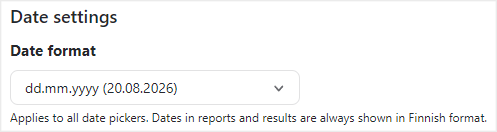
- You can choose your preferred date format under My settings.
Columns in Worktime tracking reports
In Worktime tracking, you can now choose which work time types are displayed in the report. Use the All columns button in the header row to limit the report to the work time or pay types you want to see.
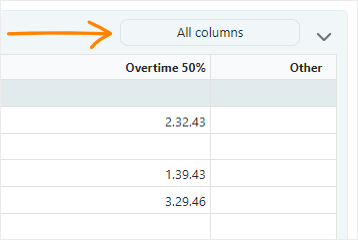
You can hide all columns at once or select, for example, only sick leave hours or vacation days. Filtering makes the report easier to analyze by leaving only the information relevant to tracking in the view.
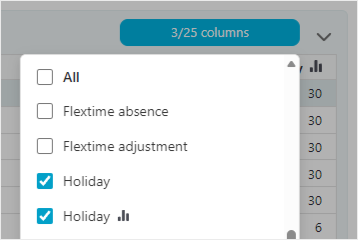
After filtering, the button shows the number of selected columns. If only one column is visible, the button displays the name of that work time type. The same column selection applies to both the summary and shift views.
You can also use the column selection when printing and saving. This makes it easy to save, for example, a sick leave report.
New features in work shift planning
Work shift planning now includes many new and improved features that allow you to create, monitor and publish your plans more smoothly than before.
Copying a completed weekly plan to multiple weeks
You can now copy a completed weekly plan to one or more selected weeks using the new Copy week button. The function copies both the shifts and their planned tasks to the selected weeks. This speeds up the planning of regularly recurring work shifts.
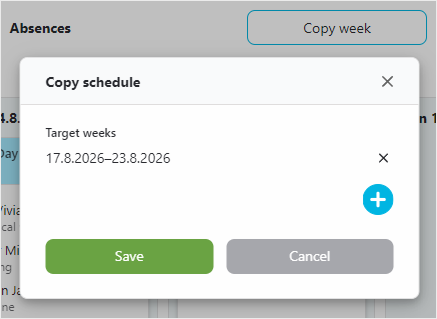
Copying takes public holidays and other exception days into account. For example, if the target week contains a public holiday, no shift will be copied to that day, leaving it blank. If the week being copied contains a public holiday, the shift on that day will not be copied to the target week.
Automatic shift publishing
A shift can be published automatically as soon as you add the first person to it. This helps ensure that planned shifts are not accidentally left unpublished, for example when there is a lot to plan.
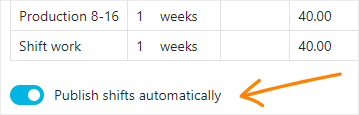
You can enable the feature under Settings > Work shift planning > Common settings. If you do not want to use the feature, you can continue to publish shifts manually.
Showing absences in planning and print views
The Work shift planning view now includes a new Absences toggle. You can use it to show or hide absences in the planning view, keeping the overall view clear.
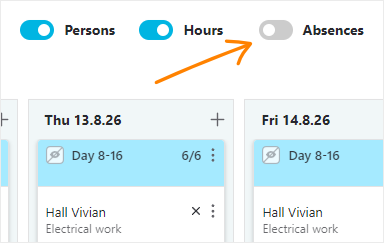
The selection also affects the print view. If absences are hidden, the work shift schedule shared with employees will not contain anyone’s sensitive absence information.
Printing by shift or person
You can now use the Print button to select Persons as the grouping option. A printout grouped by shift corresponds to the previous print format.
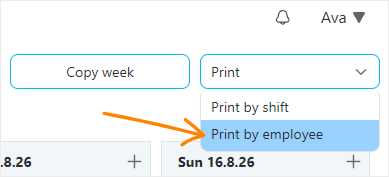
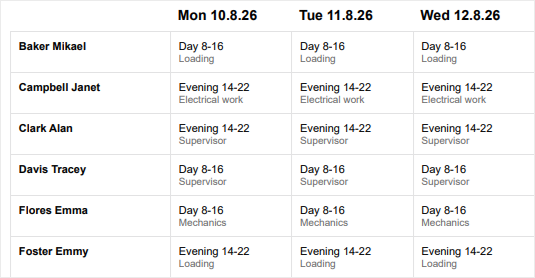
In a printout grouped by person, employees are shown in rows and their daily shifts in columns. This format is ideal for a work shift schedule distributed to employees.
Choosing between day by day and week by week
Previously, if you wanted to add a person to a shift for either a single day or the whole week, you made the selection using the button in Monday’s header row.
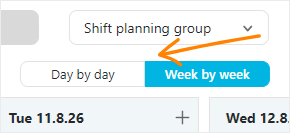
The selection button has now been moved above the shifts. It lets you choose more clearly whether to plan shifts day by day or week by week, helping you find the right planning method faster.
Change log in the work shift calendar
You can now track changes made to a person’s shifts in the work shift calendar. An edited shift is indicated by an arrow on the row. A deleted shift is marked with the text Deleted shift.
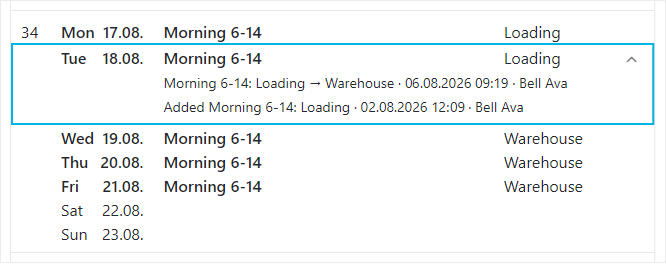
Click the arrow to view the change history, including additions, deletions and changes to tasks. This gives you a quick view of what has been changed and helps avoid confusion about changes.
Managing target hour settings
In the new version, administrators can conveniently change target hours themselves in the work shift planning settings: Settings > Work shift planning. Previously, these changes had to be requested from Deltabit.
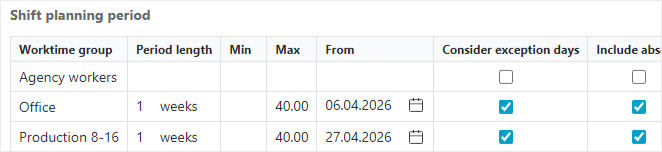
You can define target hours by work time group for any period consisting of full calendar weeks. In the settings, you can define minimum and maximum target hours and account for exception days and absences.
Date format
Notification settings has been renamed to My settings. Under the new Date settings option, you can choose your preferred date format. The setting applies to all date pickers, for example when searching or setting a start date.