



The latest update introduces both brand-new and improved features to Deltabit Gatekeeper:
- Receive notifications by email! Stay up to date wherever you are.
- Add event for multiple at once. Save time in recurring situations.
- Schedule data transfers and send reports by email. Transfers stay on track, and sending reports becomes more straightforward.
- Include archived persons in reports when needed. For example, for official reporting purposes.
Let’s go through these in more detail next.
Email notifications
You can now receive notifications such as absence requests, reviewed work shifts, and planned shifts directly to your email.
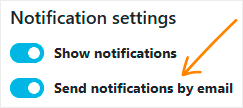
To enable email notifications, go to Settings and select “Send notifications by email”.
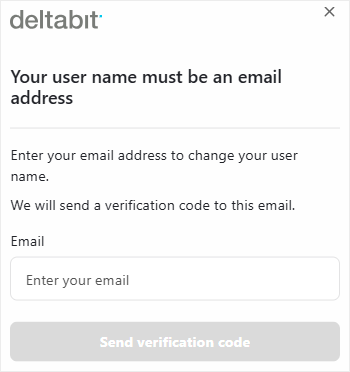
To receive email notifications, your username must match your email address. If not, the system will guide you through the necessary steps.
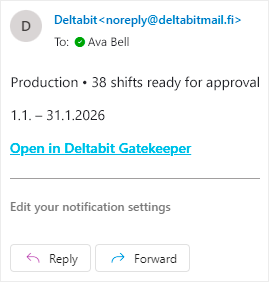
The email notification contains the same information as the in-app notification. A link in the message will take you directly to the relevant view so you can respond quickly even if you’re not logged into the system.
Add event for multiple persons
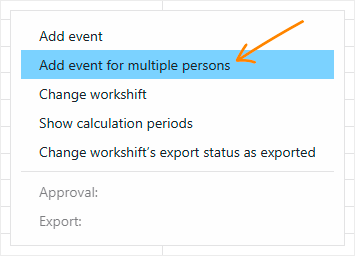
You can now add working hour and work task events for multiple at once. This feature is available in the right-click menu for individual shifts, events, or persons.
You can select persons using work time groups, user groups, or by selecting them manually. Multi-selection is supported, and any event that is normally added can be selected as the event type.
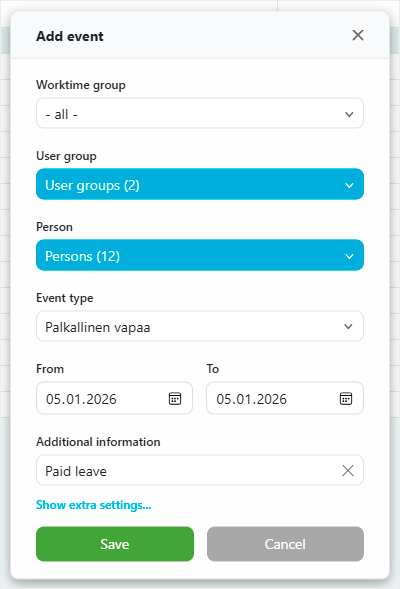
This feature is especially useful when entering shared absences, such as moved public holidays.
Scheduled transfer and email as a new transfer method
Transferring reports and event data to external systems is now easier than before. A new option for scheduling transfers automatically has been added alongside the Export data button.
Once you’ve defined the time and date range, the transfer will run in the background without any further actions. This ensures timely transfers with the correct data – even when you’re not around.
There’s also a new transfer method available: email. You can send reports automatically by email, or manually using the Export data button.
Show archived persons in reports
The archiving feature hides persons from the system views. This helps keep the workflow smooth by showing only active persons. When needed, you can now also include archived persons in reports, for example, for official reporting purposes.
As a result, a new option is available when generating work time, work task, and event reports: Show archived. When this option is selected, the reports will include all persons you have permission to access.
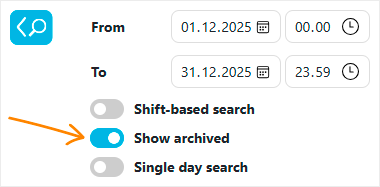
Please note that for work time and work task reports, archived persons must still belong to an active work time group in order for their data to be shown.